
How to use Claude Code: from install to your first real task
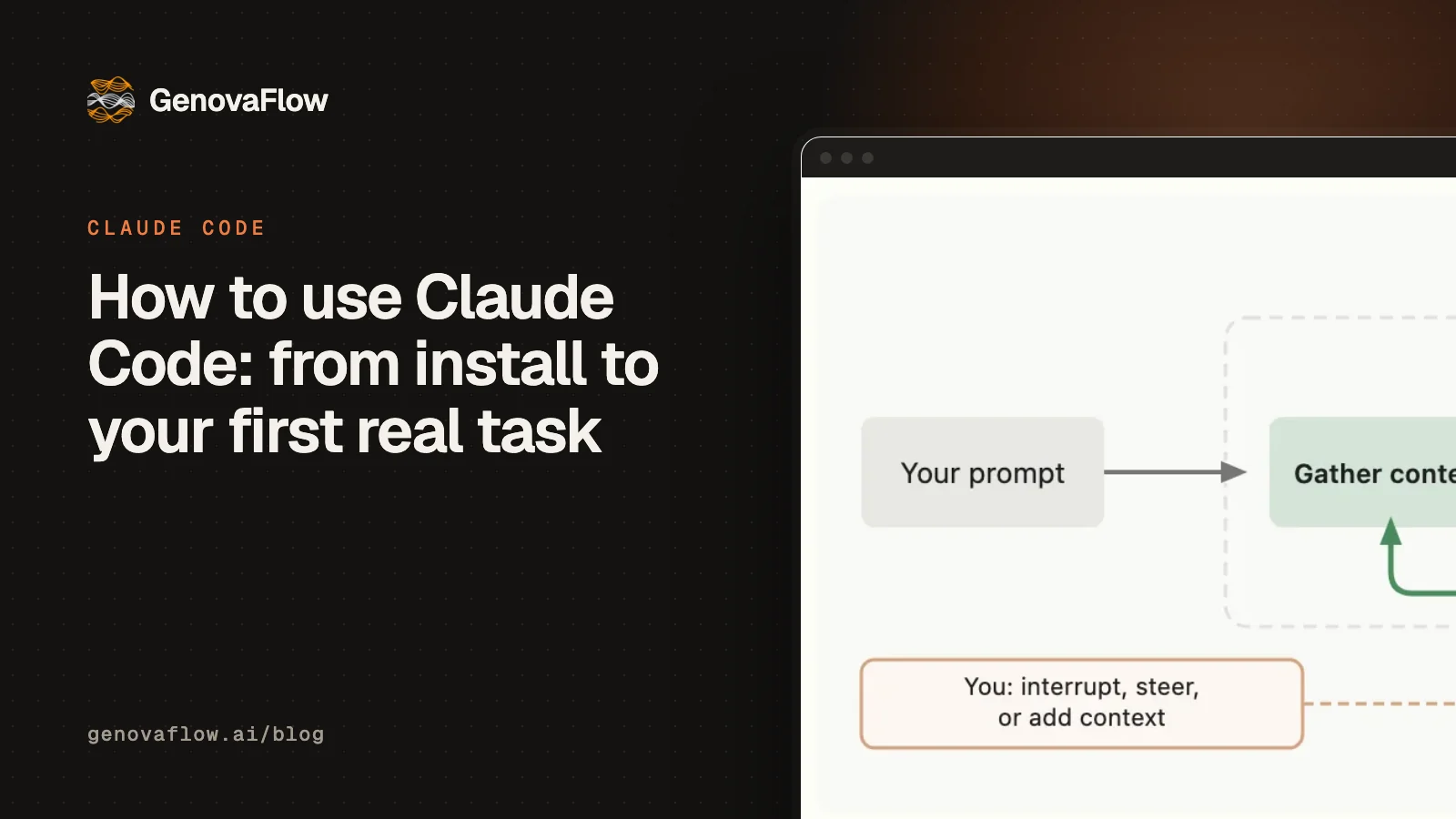
Install it, open one folder and give it one task with a check
To use Claude Code, install it with one command or open the Code tab in the Claude desktop app, sign in with a paid Claude plan, and open a folder that holds only the files for one job. Then describe the task in plain words, including how Claude can check its own result. Start in plan mode, read the plan, and only then let it change anything.
Claude Code is not a chat window that happens to know about code. Anthropic describes it as "an agentic assistant that runs in your terminal" that "can help with anything you can do from the command line: writing docs, running builds, searching files, researching topics, and more" (How Claude Code works). Give it a task and it works through three phases, gather context, take action and verify results, repeating them until the job is done or you stop it. That loop is the diagram at the top of this page, and it is the same loop behind every AI agent.
That makes it useful well beyond software. A first task can be cleaning a spreadsheet export, renaming a folder of files or turning notes into a report. This guide covers the first hour: what you need, the install, the setting that decides what Claude may do without asking, one real task done safely, and how to undo it.
If you have a recurring task you suspect Claude Code could do, we can look at it with you. Book a call with GenovaFlow AI
You need a paid Claude plan and a reasonably recent computer
Claude Code needs a Pro, Max, Team, Enterprise or Console account, and Anthropic is explicit that "the free claude.ai plan does not include Claude Code access" (Claude Code setup docs). A Console account bills API usage from prepaid credits instead of a subscription. On the computer side it runs on macOS 13.0 or later, Windows 10 1809 or later, Ubuntu 20.04 or later and Debian 10 or later, with at least 4 GB of RAM and an internet connection.
You do not have to use the terminal. The Claude desktop app has Claude Code in its Code tab, and the docs note that "the desktop app includes Claude Code, so you don't need to install Node.js or the CLI to use the Code tab" (desktop quickstart). If clicking Code asks you to upgrade, your account is on the free plan. Claude Code also runs in VS Code and JetBrains IDEs and on the web, and the loop is identical everywhere; only the window around it changes.
Before you start, make a new folder and copy in only the files the first job needs. Claude Code works in the directory you open it in, and can reach files elsewhere only with your permission, so a small folder keeps the first task contained. In the first lesson of our Claude Code course, that folder holds nothing but one messy lead export.
Install with one command, then check the version
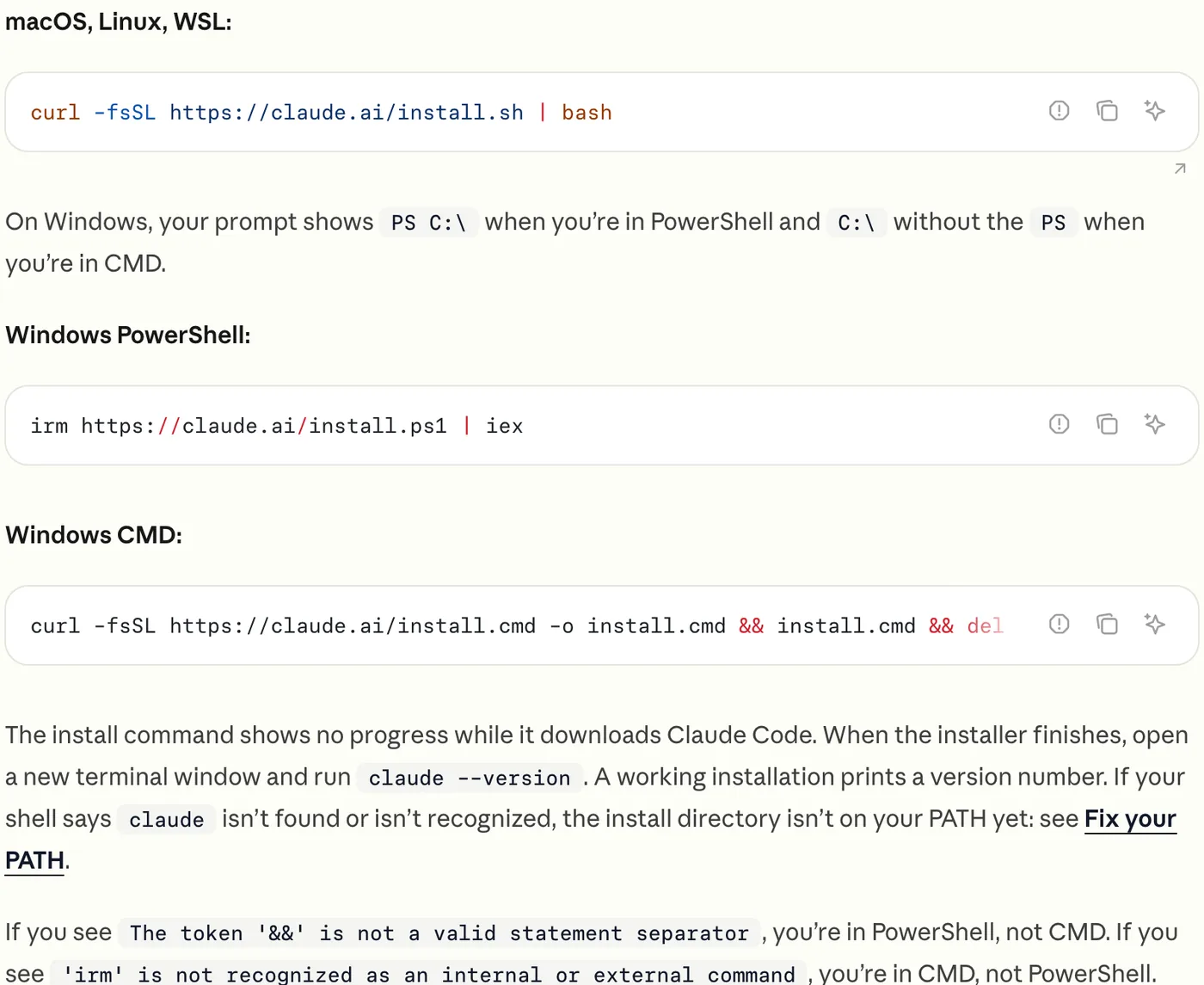
The native installer is the recommended route and updates itself in the background. Open a terminal and run the line for your system (Claude Code quickstart):
# macOS, Linux, WSL
curl -fsSL https://claude.ai/install.sh | bash

# Windows PowerShell
irm https://claude.ai/install.ps1 | iex

# Windows CMD
curl -fsSL https://claude.ai/install.cmd -o install.cmd && install.cmd && del install.cmd
The install shows no progress while it downloads, so leave it alone until it finishes. Then open a new terminal window and run claude --version: a working install prints a version number followed by "(Claude Code)". If the shell says claude is not found, the install folder is not on your PATH yet, and the docs have a page for exactly that. On Windows, a prompt that starts with PS is PowerShell, and Anthropic recommends installing Git for Windows so Claude Code can use its Bash tool. Homebrew and WinGet installs work too, but they do not update themselves.
Then move into your folder and start a session:
cd /path/to/your/folder
claude
The first time, Claude Code asks you to log in and finishes the sign in in your browser; after that the credentials are stored, and /login switches accounts later (quickstart). In the desktop app the equivalent is the Code tab, the Local environment and Open folder. Ask a question before you ask for a change, such as "what is in this folder?" or, in a code project, "explain the folder structure". Claude reads files as it needs them, so you do not have to paste anything in.
Know what each permission mode lets Claude do without asking
The permission mode is the most important setting for a beginner, because it decides what Claude may do without asking you first. Press Shift+Tab to cycle through the modes in the terminal; the current one shows under the prompt box. From Claude Code v2.1.283, terminal and VS Code sessions start in auto mode, where a separate classifier reviews most actions and blocks the risky ones instead of asking you (permission modes docs).
| Mode | What runs without asking | Good for |
|---|---|---|
Manual (default) | Reads only | Your first weeks, and sensitive work |
| Accept edits | Reads, file edits and common file commands such as mkdir, mv and cp | Changes you are reviewing as they happen |
| Plan | Reads, plus commands the classifier approves when auto mode is available; no edits to your files until you approve the plan | Anything you could not describe in one sentence |
| Auto | Everything, with background safety checks | Long tasks, once you trust the setup |
| Bypass permissions | Everything | Isolated containers and virtual machines only |
For your first tasks, press Shift+Tab once to leave auto for Manual, so Claude asks before it edits a file or runs a command and you learn what it actually does. Press it twice more to reach plan mode, shown as "plan mode on". When the plan is ready, Claude offers three choices: Yes, and use auto mode; Yes, manually approve edits; and No, keep planning. Leave bypass permissions alone: the docs say to "only use this mode in isolated environments like containers, VMs, or dev containers without internet access".
Run your first task as explore, plan, do, check
Anthropic's best practices recommend the same order for almost every task: explore first, then plan, then implement, then commit, with plan mode keeping the first two separate from the changes (best practices). Underneath that sits one habit that matters more than any prompt trick: "Give Claude a check it can run: tests, a build, a screenshot to compare. It's the difference between a session you watch and one you walk away from." Without one, the docs point out, "Claude stops when the work looks done."
Here is a worked example that needs no code, the task from the first lesson of our Claude Code course: a lead export with inconsistent names, duplicate people and missing emails. The prompt reads like a brief to a careful assistant, and it builds the check into the job by asking for a summary of counts you can compare with the sheet yourself:
1. Leave leads.csv exactly as it is. Put the cleaned leads in a new file called leads_clean.csv.
2. Trim stray spaces everywhere and fix name casing so every name reads like "Jane Doe" (keep names like O'Brien right).
3. Make every email lower case.
4. Two rows are the same lead when the email matches. Keep one row per lead: the most complete one, and if they tie, the newest.
5. Rows with no email stay out of the clean file. Put them in leads_no_email.csv so I can chase them.
6. Write phone numbers in one format, like 555-0101.
7. Write every date as year, month, day, like 2026-09-14. Dates with slashes in this export are month first.
8. Spell each lead source the same way every time.
9. Sort leads_clean.csv by company, then by last name.
10. Write summary.md with: rows in the export, duplicates removed, rows with no email, leads in the clean file, and the top three lead sources in the clean file with their counts.

Do not install anything, and do not delete or overwrite any file.
Paste it in plan mode and read the plan before approving. Check that it found the duplicates, that it says the original stays untouched and that it names the new files it will create; if anything is off, say so in plain words and it plans again. Approve with Yes, manually approve edits, so each new file is shown to you before it is written. Then open the results yourself and compare them with the summary. The docs' advice is to have Claude "show evidence rather than asserting success", so ask how it knows the original file was not changed and look at what it runs to answer.
The same shape works on a code project, where the check is usually a test or a build. Be specific: the quickstart's own example swaps "fix the bug" for "fix the login bug where users see a blank screen after entering wrong credentials" (quickstart).
Stop, rewind or roll back when it goes wrong
You can step in at any moment. Press Esc and Claude stops at once, with the conversation kept so you can redirect it; or type a correction and press Enter, and Claude reads it as soon as its current tool calls finish (How Claude Code works).
For changes you regret, use rewind. Every prompt you send creates a checkpoint, and pressing Esc twice with an empty prompt, or typing /rewind, opens a menu where you can restore the code, the conversation or both to any earlier prompt (checkpointing docs).
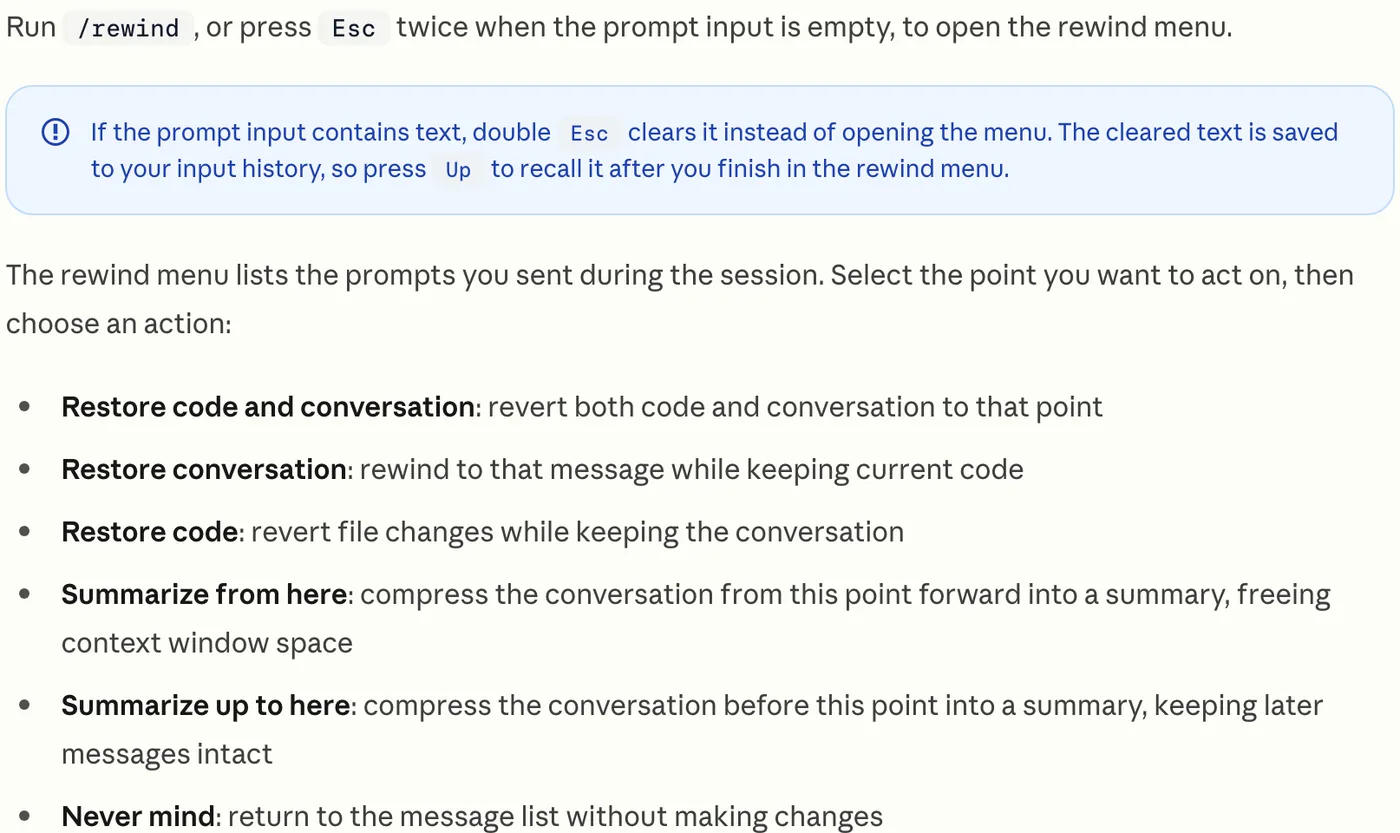
Rewind has limits worth knowing before you rely on it. It tracks the edits Claude makes with its own file tools, so a file changed only by a shell command stays as it is; snapshots are deleted about 30 days after the session last saved one; and anything that touched a remote system, such as a database, an API or a deployment, cannot be checkpointed at all, as How Claude Code works notes. The checkpointing docs call it session level recovery, not a replacement for version control. So before a change you care about, ask Claude to set up git in the folder and make a save point, and you can always get back to it.
One more rule from the best practices saves a lot of frustration. If you have corrected Claude more than twice on the same problem, the conversation is full of failed attempts, and the docs advise running /clear and starting again with a better prompt that includes what you learned (best practices).
Keep each session to one job
The constraint behind most advice about Claude Code is the context window, everything Claude can see at once: in Anthropic's words, it "fills up fast, and performance degrades as it fills" (best practices). A few commands keep it under control, and they are worth learning in your first week:
/clearstarts a new conversation with empty context; use it between unrelated tasks./contextshows what is using the window as a coloured grid./compactsummarises the conversation so far, with optional instructions about what to keep./usageshows session cost, plan usage limits and activity.claude -ccontinues your most recent conversation in the folder, and/resumepicks an older one./initwrites a starter CLAUDE.md, the file Claude reads at the start of every conversation.
Keep that CLAUDE.md short: the docs suggest asking of each line whether removing it would cause Claude to make mistakes, and cutting it if not (best practices). When usage limits start to bite, the eleven fixes that cut our Claude Code token usage pick up from here, and n8n vs Zapier vs Make, and where Claude Code fits explains when a job belongs in Claude Code and when it belongs in a scheduled workflow.
More guides are in the Claude Code category. If you would rather have someone set Claude Code up around your own files and processes, or build the automation it should hand work to, that is what our custom AI agents service does.
Questions people ask
Do you need to know the terminal to use Claude Code?
No. The Claude desktop app includes Claude Code in its Code tab, where you choose a folder, type what you want and approve changes with buttons. The terminal version does the same work, and the docs include a terminal guide for people who have never opened one.
Can you use Claude Code in VS Code?
Yes. Claude Code runs as an extension in VS Code and in JetBrains IDEs as well as in the terminal and the desktop app. The agent loop, the tools and the permission modes are the same as in the terminal; from version 2.1.283, VS Code sessions also start in auto mode, so switch to Manual or plan mode for your first tasks if you want to approve each change.
Are Claude Code sessions saved?
Yes, locally. Claude Code writes each conversation to a file under ~/.claude/projects/ on your machine, which is what makes rewinding and resuming possible. Run claude -c to continue the most recent conversation in a folder, or /resume to choose an older one. A new session starts with an empty context, so put anything Claude should always know in CLAUDE.md.
When should you compact or clear in Claude Code?
Clear with /clear when you move to an unrelated task, or after correcting Claude twice on the same problem. Compact with /compact when you are deep in one task and want to keep going with less history, optionally telling it what to keep. Claude Code also compacts on its own as the window nears its limit, but early detail can be lost when it does.
Sources
- Quickstart, Claude Code docs
- Advanced setup, Claude Code docs
- Get started with the desktop app, Claude Code docs
- Permission modes, Claude Code docs
- Best practices for Claude Code, Claude Code docs
- Checkpointing, Claude Code docs
- How Claude Code works, Claude Code docs
- Commands, Claude Code docs
- Git for Windows
Keep reading

11 Fixes That Cut Our Claude Code Token Usage by 70 Percent
Two installs, rtk and caveman, and nine built in Claude Code habits took our session from 100 percent used to 20. Each fix, its command and why it saves tokens.
Read the post
n8n vs Zapier vs Make for AI workflows, and where Claude Code fits
How n8n, Zapier and Make price AI workflows, what n8n's license lets you self host, and when a coded agent like Claude Code is the better tool.
Read the post
What agentic AI is and how it differs from a chatbot
Agentic AI is a model that picks its own next step and uses tools in a loop. How it differs from a chatbot or a workflow, with a worked example.
Read the post